
I suspect some new Linux users may have given up on this and decided to just use the save file dialog. While that works, the problem with that is that you have to use the save file dialog, and more often than not, that's going to be a GTK save file dialog. Nobody deserves to suffer through that experience, so it's a better idea to spend a few minutes setting up templates for your most used applications.
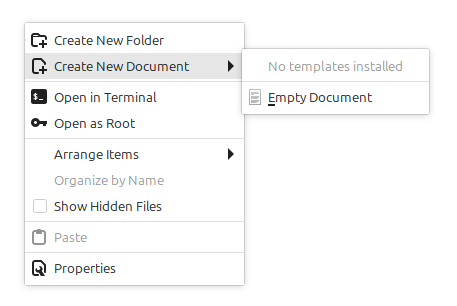
To "install" a template, follow the following steps:
1: using Nemo, navigate to your home directory.
2: you should see that there is a folder called Templates in your home directory. Open it. If you don't have a ~/Templates directory for some reason, create one.
3: put in this directory the files that you want to serve as "templates" for new files.
For example, let's say that you want to create a template for LibreOffice Calc. What you do is you open LibreOffice Calc, create a new spreadsheet, and then just save this new spreadsheet as-is in the Templates directory. You give it a filename like "New LibreOffice Calc Spreadsheet" and it will automatically show in Nemo's context menu the next time you open it.
When you select the template, the only thing that Nemo does is copy and paste the file from the Templates directory. In other words, this whole "template" system is just a shortcut for copy pasting from the Templates directory. This has some advantages and some disadvantages.
The advantage is that you can create any sort of template that you want, including having multiple templates for the same file type.
For example, if you often create thumbnails for Youtube using a 1280x720px resolution in Krita, you can simply create a new 1280x720px document in Krita, save it in your Templates folder with a name like "Youtube Thumbnail 1280x720px," and then any time you want to create a new thumbnail for a video you can select your most commonly used resolution directly from the context menu.
As you may imagine, there are some disadvantages.
First, templates are not installed by default. I don't know why, it's not that hard of a problem to solve. But it's another one of those things on Linux where you have a worse user experience than on Windows for no valid reason at all. It's just worse. You have to create them yourself, manually, for every application you care about.
Second, templates are not updated automatically, since they aren't installed automatically. As software gets developed, there may be cases where a major change in version brings changes that break backward compatibility so badly that the application can't open old files anymore. Normally, the application will automatically convert the file that is in an older version to a new version before processing it further, but sometimes they support is dropped entirely, and if that happens you won't be able to open your new files anymore, unless you manually update them. This is unusual, but it can happen.
Submenu for New File Templates on Linux Mint
You may be wondering how can you create submenus for new file templates in Linux Mint. For example, you may want have 20 different templates of Krita documents in different resolutions for some reason. That sounds excessive, but it's your computer, who am I to judge what you can do with it?
In this case, all you need to do is create a new folder in the templates folder. Nemo automatically processes subfolders as submenus.
And yes, you can put a second subfolder inside that that folder to create a submenu with the submenu.
Custom Icons for New File Templates
You may be wondering if you can change the icon of your new file templates in Linux Mint. And yes, you can do that. In a way that is extremely obvious if you already know about an extremely not obvious feature of the Nemo file manager.
All you need to do is change the icon of the file on your Templates folder.
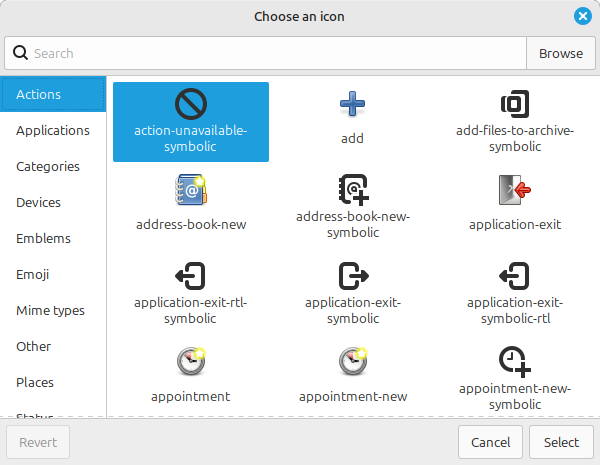
This is probably the easiest ricing you can do on Linux Mint. Anyone can do this. It's as easy as changing your wallpaper, but will give you a lot more cred on social media.
Note: although templates work like copy and paste, if you create a file from a template that has a custom icon the icon won't be copied, even though it normally would be copied if you simply copy and pasted it through Nemo.
Note: changing the color of subfolders in Templates also affects the appearance of the icons in the context menu.
Note: setting "emblems" in files in Templates does NOT affect the appearance of the icons in the context menu.
Creating Templates for Script Files
You can create templates for all sorts of scripting languages that you use on Linux, simply create an empty file and then write the shebang.
For Bash, I recommend including set -e since it's easy to forget that. For example, the template for a new Bash script could be something like this:
#!/bin/env bash
set -e
Yes, with two empty lines at the end, of course, so I don't have to type them manually after creating the file.