To change the icon of a file or folder on Nemo, follow the following steps:
1: open the file or folder's properties dialog through their context menu.

2: in the file properties dialog, to the left of where the fields Name, Type, and Size are located, you will see the file's current icon. That's actually a button! Click on it to reveal a second dialog window, from which you will be able to select a new icon for the file or folder.
Using Nemo's "Choose an icon" Dialog
In Nemo's "Choose an icon" dialog, you will see listed all icons that are installed in known locations of your operating system.
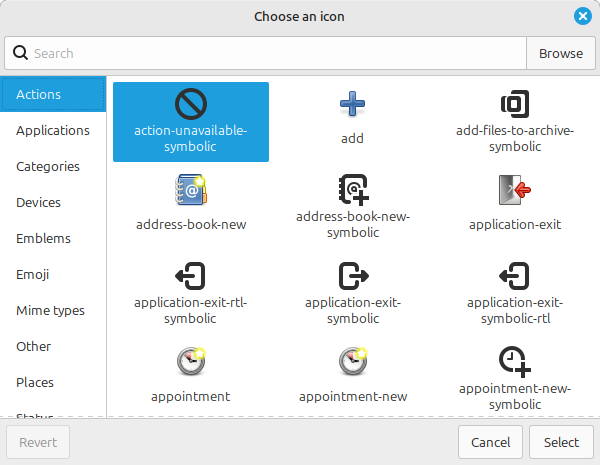
Whenever you install an application, such as Krita, Inkscape, or LibreOffice, their icons are installed in such locations, so you can find application icons by typing their names in the search box at the top part of the dialog.
At the left side you have some categories in case you want to browse icons.
Selecting an Image File to be the Icon of a File in Nemo
To select an arbitrary image from your disk to use as the file's icon, click on the "Browse" button, which will open a third dialog, this time a file chooser dialog, for you to choose the file.
Reverting Changes
There ia Revert button on the bottom-left corner that you can click to revert the icon to its default.
Questions & Answers
Does copying a file copy its icon?
Through Nemo, Yes. Through other methods, the answer is most likely no. The reason for this is how the data is stored. Nemo stores the icon associations in a separate database of its own[https://superuser.com/a/1776674 (accessed 2025-06-19)], so unless the program copying the file is aware that you are using Nemo, it won't copy the icon association.
In particular, terminal commands like cp will not copy the icon.
If you move or delete the image you used as the icon for a file does the file retain the icon?
No. Nemo appears to simply associate the filepath of the image with the file, so if the filepath doesn't exist, Nemo won't load the icon.
Failing to load the icon doesn't modify the association, so if you place a new image in the same filepath Nemo will start loading the new image for the icon instead.