How to Create an Account in Bluesky

Share
In this tutorial, we'll learn how to create a new user account in Bluesky, the decentralized social media.

To create an account on Bluesky, follow the following steps:

1: access the website of the main Bluesky instance through the URL:

2: click the "Sign Up" button, a form with several fields will appear.

A blue button "sign up" between the text "sign up or sign in to join the conversation" and "English".
Where is the Sign up button in Bluesky.

3: fill the required fields, including your e-mail address, password, and birth date.

A form next to the cext "create account: we're excited to have you join us!" labeled "Step 1 of 3," "Your account." Hosting provider: Bluesky Social. Email: me@virtualcuriosities.com. Password: (asterisks). Your birth date: 23/09/2004. Footer: by creating an account you agree to the terms of service and privacy policy. Two buttons: back and next.
Bluesky's "Create account" page, step 1.

4: where it's written "By creating an account you agree to the Terms of Service and Privacy Policy," verify the terms in the linked articles. If you don't agree with them, desist.

5: click "Next."

6: choose an username (also called handle). Observe the considerations:

  • The username must be unique in the platform. If someone else has already chosen the handle you typed, you must choose a different one.
  • It must contain only letters, numbers, and hyphens. It's not possible to choose john_smith, for example, with an underscore (_), it must be john-smith.
  • It must have at least 3 characters.
  • Although it's not written: currently certain names aren't accepted, and the error displayed is that they would be "too long" or "too short."1
Page with a form labeled "Step 2 of 3," "Your user handle," with a field that has an at symbol (@), and the value virtualcuriosities. A text below: your full handle will be @virtualcuriosities.bsky.social. Only contains letters, numbers, and hyphens. At least 3 characters. Two buttons: back and next.
Create account page of Bluesky, step 2 of 3.

7: click "Next."

8: in the third and last "step" you must solve a captcha. Click on the square and follow the instructions to prove to the computer that you're human.
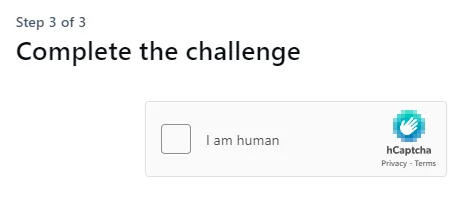
A page that says step 3 of 3, complete the challenge. A small white square next to the text "I am human." A brand that says hCaptcha. Links to privacy and terms.
The third step of Bluesky's account creation process: solve a captcha.

Observation: if an error occurs and the screen stays "loading," it's possible to click on the back button opposite to "Next" that we have been clicking so far and try again.

9: after these 3 steps out of 3, there are another 3 steps to create your account, the first being to select an avatar (a profile picture) for your account.

Optional: to select an image file for your avatar, click on the circle in the middle of the screen with a smaller blue circle with a pencil icon symbolizing "edti."
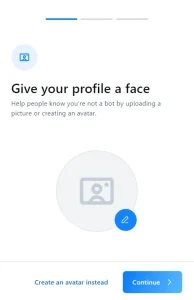
A page that says "Give your profile a face. Help people know you're not a bot by uploading a picture or creating an avatar." With a circle with an image and an icon of editing, and two buttons at the footer: Create an avatar instead and Continue.
The step 4 of 3 of Bluesky's account creation process.

Optional: you can also click on "Create an avatar instead" if you don't have an image. This will show a dialog box for you to create an avatar from colors and emojis.
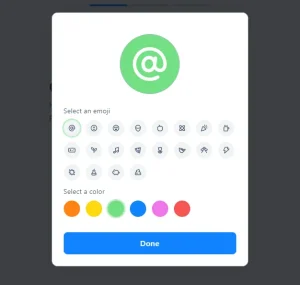
A dialog box in front of a semi-transparent dark background letting you "Select an emoji" and "Select a color." After this, you can click on the button "Done" to create the avatar.
The dialog box to create an avatar in Bluesky.

10: click "Continue."

11: in the next step you can select categories of topics that interest you. I suggest you select your hobbies, like "Comics" or "Photography." If you don't have hobbies, I suggest you make some.
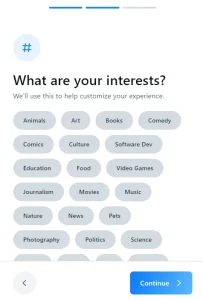
A page with a hashtag symbol written: what are your interests? We'll use this to help customize your experience. Options include: Animals, Art, Books, Comedy, Culture, Software Dev, Education, Food, Video Games, Journalism, Movies, Music, Nature, News, Pets, Photography, Politics, Science, among others. Two buttons: back and continue.
The step 5 of 3 of Bluesky's account creation process.

For reference, the full list of categories available at time of writing:

  • Animals.
  • Art.
  • Books.
  • Comedy.
  • Coomics.
  • Culture.
  • Software Dev.
  • Education.
  • Food.
  • Video Games.
  • Journalism.
  • Movies.
  • Music.
  • Nature.
  • News.
  • Pets.
  • Photography.
  • Politics.
  • Science.
  • Sports.
  • Tech.
  • TV.
  • Writers.

12: click "Continue" and you should see a page congratulating you for successfully creating an account.

A page with the text: You're ready to go! We hope you have a wonderful time. Remember, Bluesky is: Public, your posts, likes, and blocks are public. Mutes are private. Open, never lose access to your followers and data. Flexible, choose the algorithms that power your custom feeds. Two buttons: back and "Let's go!"
Step 6 of 3 of Bluesky's account creation process.

Recommendation: after creating your account, edit your profile to change your display name.

Recommendation: go to "Settings" in the side menu and click the button "Verify My Email" to protect your account.

A page with a side menu: Home, Search, Notifications, Chat, Feeds, Lists, Profile, Settings (active), and a button "New Post." In the main pane: Account, e-mail: me@virtualcuriosities.com. Birthday: Show. Verify email. Verify My Email. Protect your account verifying your email. Signed in as: virtualcuriosities.bsky.social. Buttons: add account, sign out.
Bluesky's settings page, where you can find the button "Verify My Email."

References

Written by Noel Santos.

About the Author

I'm a self-taught Brazilian programmer graduated in IT from a FATEC. In a world of increasingly complex and essential computers, I decided to use my technical expertise in hardware, desktop applications, and web technologies to create an informative resource to make PC's easier to understand.

View Comments (1)