Virtual Curiosities

  • Websites
    • Search Engines
    • Social Media
  • Applications
    • For Digital Art
  • Tutorials & Tips
    • The Basics
    • Windows
    • GIMP
    • Krita
    • Inkscape
    • DaVinci Resolve
    • OBS Studio
    • WordPress (PHP Programming)
  • Reference
    • Hardware (Concepts)
    • Names of Computer Parts
    • Software (Concepts)
    • File Extensions
    • User Interfaces
    • Images & Image-Editing (Concepts)
    • Video & Video-Editing (Concepts)
    • Games (Terminology)
    • Internet (Concepts)
How to Switch to Light or Dark Theme in LibreOffice Calc

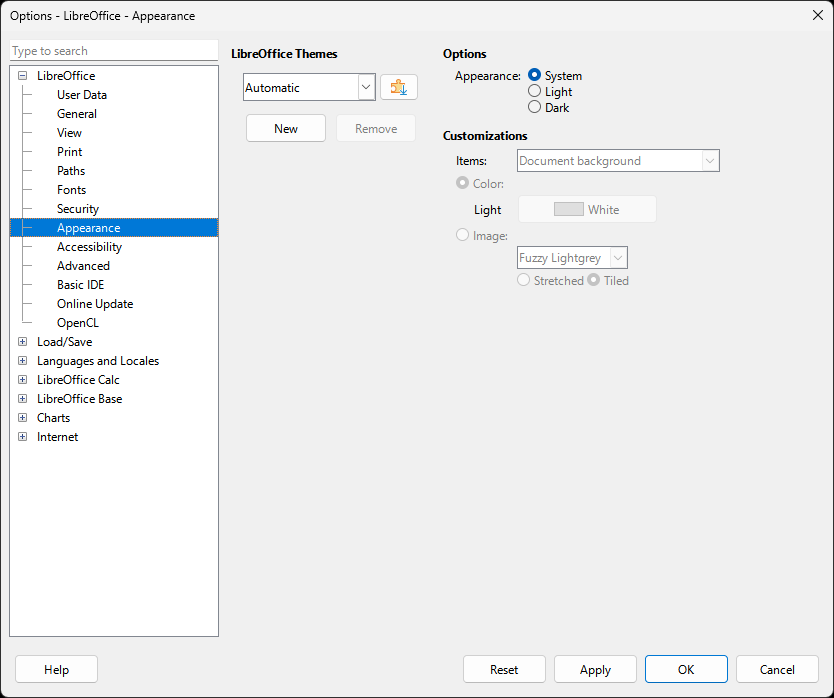
LibreOffice: Options Dialog, Appearance (2025)

Share
2025-03-03
A dialog titled "Options - LibreOffice - Appearance." In it, "Appearance" is selected on the side pane. On the main pane, the options: LibreOffice Themes (Automatic), two buttons: New, Remove. A section labelled "Options." Appearance: System (checked), Light, Dark. Customizations (various greyed out controls): Items: Document background. Color, Light / White. Image: Fuzzy Lightgrey, Stretched (unchecked), Tiled (checked). At the bottom, five buttons: Help, Reset, Apply, OK, Cancel.

Description

LibreOffice's options dialog, showing the Appearance options.

Metadada

File Type
image/webp
File Size
11.1KiB
Resolution
834x698px

Related Articles

  • How to Switch to Light or Dark Theme in LibreOffice Calc

Share this page: send it to your friends!

View Comments

About the Site

  • Sitemap
  • Privacy Policy

Follow

Main Content © Virtual Curiosities 2023–2024.
Some Resources © Their Respective Authors.
Made with WordPress.