Krita
Krita is known as an application for digital art, but it's a fully featured image editor with many extremely useful and cool features for photo editing and graphic creation.
You can install Krita on Linux from your software manager, or through the terminal command sudo apt install krita or the equivalent of your distro's package manager [How to Install an Application using the Terminal on Linux Mint].
Official website: [https://krita.org/].
Some of Krita's major features for photo editing include:
- Basic filters: brightness and contrasts, levels, color curves, luma-base hue change, cross-channel adjustment, blur, among others.
- Non-destructive editing: filter layers (adjustment layers), fill layers (solid background, pattern, noise, SeExpr expression), transparency masks, transform masks (non-destructive translate, rotate, scale, skew, liquify, perspective, etc.).
- Clone layers to reuse a layer or layer group in multiple parts of an project (see How to Add Chromatic Aberration in Krita (Non-Destructive Effect) for a practical use).
- Alpha blend modes like destination atop, destination in, and erase.
- The "smart patch tool" that quickly removes objects from an image. It's not perfect, but it does the job really quickly for small objects like pimples, or even people standing in front of sand on a beach.
- File layers for including a file from the disk in the canvas dynamically rather than embedding it.
- Reference images that are displayed anywhere on the viewport unclipped by the canvas and aren't exported.
- Layer styles: stroke, drop shadow, outer glow, etc.
- A timeline for keyframe based animation.
If all you are doing is some basic photo editing, Krita is the best free Photoshop alternative for Linux that we have right now.
However, it does have some drawbacks.
- The text tool is probably the worst text editor of any image editor I've ever seen. This is not exaggeration. I've read someone is working on fixing it right now, but as of version 5.2.9 we still have a clunky text tool that gives you a dialog box with black text on a dark theme. If you do a lot of graphic work with text, Krita alone won't be enough. For basic text additions, it can do the job, specially as Krita does have layer styles so you can easily add a stroke and drop shadow to the text you create.
- It can export to all major image formats, but there aren't that many export settings compared to GIMP.
- It supports vector graphics, but like text it's a bit clunky to use and honestly you should use Inkscape instead for that.
Additionally, I'd like to note that if you want to use Krita for animation or pixel art, I recommend taking a look at specialized alternatives such as OpenToonz and Aseprite (or Libresprite, which is free).

Inkscape
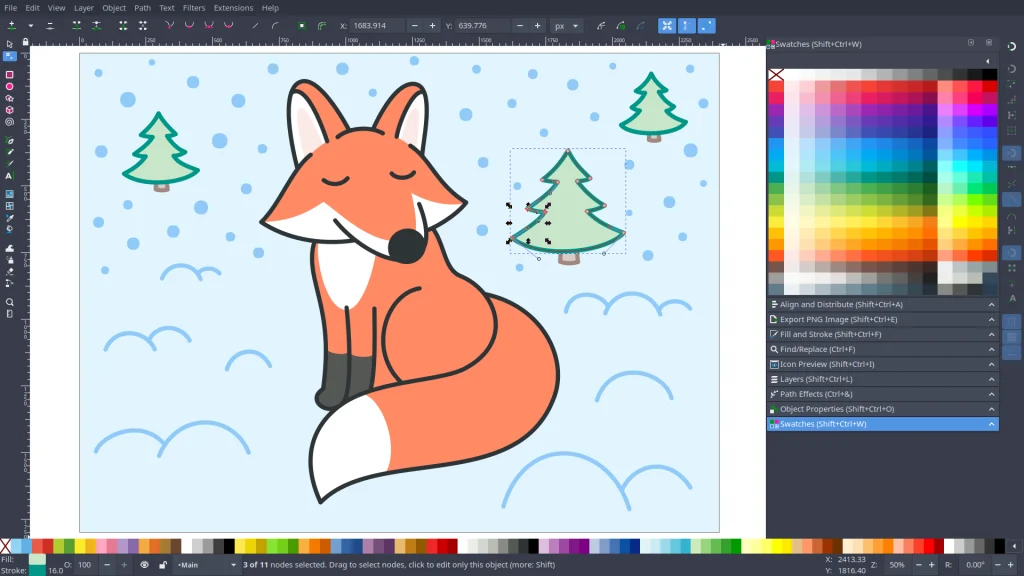
Inkscape is a scalable vector graphics editor. It is, specifically, an SVG editor. In general this makes it an alternative to Corel Draw, Adobe Illustrator, and Affinity Designer, although it's honestly just worse in general compared to these commercial software. See [Comparison: Affinity Designer vs. Inkscape] for details.
Official website: [https://inkscape.org/].
sudo apt install inkscapeInkscape is not a replacement for Photoshop if you do photo editing in it, since Inkscape isn't a raster image editor. You can import images into it, but you can't change their pixels. I mean, you can, with filters, but they are extremely clunky to use and confusing to use.
You can, however, add text and shapes to your images, and easily clip them to shapes. If you are doing something like a collage, Inkscape should work really well for that. Unfortunately, although you can add effects like drop shadows, this is done through the filters dialog, which, again, is extremely clunky to use compared to what you have in Affinity Designer, for example, or even in Krita.
Note that you can export graphics you create in Inkscape and import them in Krita, or vice-versa. Since Krita can't do text, and Inkscape is probably the best free and open source software we currently have for adding text to things (that doesn't mean it's exceptionally good, by the way, it just means it's the best we have), one application complements the other. It's not perfect, and I really wish I could do all of this in Krita, but it's free, so if all you use Photoshop for is to create thumbnails for Youtube, for example, this Krita plus Inkscape should be enough.
Photopea
Photopea isn't really free, nor is it open source, nor is it even a desktop application. It's a web application that runs in your web browser, and, although it's free to use, it does come with ads.
Official website: [https://www.photopea.com/].
Photopea is better than Krita in some aspects. The aspects being having a usable text tool. It also comes with several fonts built into it, so if you don't have any interesting fonts installed on your PC, you don't have to search for them to create something neat, you can simply use what is included in Photopea.
One neat tool that Photopea does have and neither Krita nor GIMP have is the "brush selection" tool from Photoshop that lets you draw on the canvas using a brush and that automatically selects areas of similar color. I'm not an expert in photo editing, but to me that is such a convenient tool that if you are doing something like removing the background of an image, it might be worth opening Photopea just to use that tool, and then copy and paste the result to finish editing locally.
GIMP
The last alternative for Photoshop on Linux that we can use is GIMP. GIMP is usually the first software that people recommend as an alternative for Photoshop, and there are cases where GIMP is your best alternative, but it's just such a painful software to use I'd only recommend it if none of the software above sound good enough for you.
Official website: [https://www.gimp.org/].
sudo apt install gimpAdvantages of GIMP include:
- Many filters, including advanced photo filters.
- Many export options.
- A text tool that is not great but less terrible than Krita's.
Since GIMP 3.0, which was finally released after seven years of development, GIMP has gained the ability to select multiple layers (you read that right), and it now supports non-destructive filters, although its non-destructive capabilities aren't as great as Krita's.
The disadvantages of GIMP is that you have to deal with its GUI. That may not sound like it's such a terrible thing, but if you just try GIMP for 1 day and you'll see that it really, truly is a major drawback. I'd even say that switching back and forth between Krita, Inkscape, and Photopea, as annoying as it sounds, would be less frustrating than using GIMP.
If you do need to use GIMP, I recommend reading this tutorial: how to open 2 images in GIMP. Because you'll have this issue sooner or later and it's going to drive you crazy.
Tips for Working with Photo Editing on Linux
RAW Format Support
If you work with cameras, you might have your photo files in RAW format. The way the RAW format works varies from camera to camera, which makes it difficult to support it. After all, in order to even test that a program can load a RAW file correctly, you are going to need a valid RAW file, which means you probably need a camera that can take photos in that format or someone to contribute a file for testing purposes. In this regard, Photoshop is always going to have better support than open source can have because they have infinite money.
Nevertheless, you may be able to open RAW files in the free alternatives.
Krita now accepts the following RAW formats: bay, bmq, cr2, cs1, dc2, dcr, dng, erf, fff, hdr, mdc, mos, mrw, nef, orf, pxn, raf, raw, rdc, sr2, srf, x3f, 3fr, cine, ia, kc2, mef, nrw, qtk, sti, rwl, srw. Thanks to L.E. Segovia for the patch!
https://krita.org/en/posts/2018/krita-4-1-release-notes/ (accessed 2025-05-18)
It may also be possible to convert the RAW file to a JPG or other common format using specialized software such RawTherapee [https://rawtherapee.com/] or darktable [https://www.darktable.org/]. .
PSD Deliverables & Working Professionally with Alternative Software
If you plan to do commercial work using Photoshop alternatives, it's important to understand that you generally won't be able to deliver a PSD file. PSD is Photoshop's proprietary, closed source format. Although alternative image editors do have the ability to open (and sometimes save to) PSD, it will never be perfect, since they don't really have access to how Photoshop is programmed to replicate it perfectly, and it's specially not possible to keep their programs up to date to the latest versions of the PSD format.
This can become troublesome if you do contract work that requires you to deliver PSD files. If you export to PSD on your Linux PC, you can't really tell if it loads on Photoshop without issue because you don't have Photoshop on Linux. How do you deliver that, then?
It's a good idea to make it clear that you can't deliver a PSD, but you can deliver the project files, and, in the case of Krita's KRA documents and GIMP's XCF documents, those are open formats that anyone can open for free forever without having to purchase anything or pay a subscription fee.