To add an image to another image in Krita, follow the following steps:
1: open the first image in Krita, or, alternatively, create a new blank document to which we'll add both images.
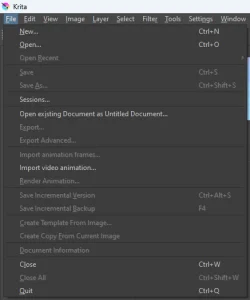
2a1: if the image you want to add is a file, drag and drop the image file from your file manager's window to Krita's window. A context menu will appear asking what to do with the drag and dropped image.

2a2: select "Insert as New Layer" to create a new layer with the image file's image data.
2b: if the image you want to add is in your clipboard, which you copied from somewhere by pressing Ctrl+C for example, you can paste it in Krita by pressing Ctrl+V or through the menu Edit -> Paste.
Having done this, you'll added one image to another in Krita. Each image will be in a separate layer. There are many things that you could do from here.
You can drag and drop the layers in the layers panel to change which image is on top and which one is underneath.
You can use the move tool in the toolbox to move one image around.
You can use the transform tool in the toolbox to resize or rotate the image destructively. This tool has advanced options with all sorts of warping methods, including perspective, cage transform, and liquefy. Alternatively, you can add a transform mask to the layer to transform it non-destructively, which is recommended practice.
If the image is opaque, e.g. it has a white background, you nay want to remove the background of the image so you can see the other image under it.
After you have finished editing the image, you should save your work.