How to Create a Duotone Effect in Krita

Share
In this tutorial, we'll learn how to create a non-destructive duotone effect using Krita (version 5.2.9) using filter layers (which is what Krita calls its adjustment layers). A duotone effect is a type of effect that takes a photo and recreates it using two colors. It seems it originally referred to actually printing photos using two Pantone tones, but normally when people say "duotone" they just mean remapping the colors of image to a two-color gradient, e.g. navy blue to red, green to yellow. This can be done with a single filter in most image editors called Gradient Map, but we'll be doing the effect in a bit more complicated way using 3 separate filters as it allows us to make a few gradient map presets once and then use the other filters to change the final result by changing the brightness of the image before it goes through the gradient map filter.
A photo of a kitten with a blue to red duotone effect applied, made in Krita.
An example of a duotone effect made in Krita. Photo: Stephen Rahn via Flickr.

To create the duotone effect in Krita, follow the following steps:

1: open the photo or image you want to edit in Krita.

2: add a Adjust -> Desaturate filter layer to the image to make it grayscale. Choose the BT.709 method. Although this method makes most sense in general, because this is just one step of the visual effect, in some cases you might want to use a different and perhaps unusual method such as Max or Min to change how the different color channels contribute to lightness in the desaturation process.

The location of Krita's "Add New Layer" popup menu in the "Layers" docker.
The location of Krita's "Add New Layer" popup menu.
The Adjust -> Desaturate filter in Krita. Options: lightness; luminosity (ITU-R BT.709); luminosity (ITU-R BT.601); Average; Min; Max.
The "Desaturate" filter in Krita.

3: add an Adjust -> Levels filter layer. You don't need to adjust its settings for now, simply add it.

A screenshot of krita levels filter settings as shown in the new filter mask dialog.
A screenshot of Krita's "Levels" filter settings.

4: add an Map -> Gradient Map filter layer.

Note: your layer stack should be in this order:

- Gradient Map Filter
- Levels Filter
- Desaturate Filter
- Your image

You can now use the Gradient Map to pick the two colors of your duotone.

5: double click on a control point to change its color. Do this for the control points on both sides. Don't worry about colors looking too saturated. Simply pick the colors you want.

A dialog window titled "New Filter Layer - Krita." It has two panes: on the left a list of filter categories, in it "Map" is expanded with the follow items: Gradient Map (selected), Normalize, Palettize, Phong Bumpmap, Round Corners. In the main pane, the top row of widgets: "Default" (a dropdown list button), Use last preset (unchecked), Edit Presets (button), XML (button). Then two tabs: Gradient Colors (active), color mode. In the gradient colors tab, various rows of widgets. The first: a plus button, a save button, a button that reads "Convert to Segment Gradient," a button with a down arrow that reads "Choose Gradient Preset." And an icon that is three horizontal lines. A textbox labelled "Name" (value: Blue to Red). A complex widget to edit the gradient, showing a blue to red gradient. A left and right arrow icons, next to the "Stop #1" label, a trash can icon, an icon that appears to mean mirroring, an icon that is a graysale gradient with an right arrow under it, an icon that is a rainbow gradient with a right arrow under it, an icon that is two small rectangles. Under a large rectangle with a red and blue gradient, two control points that are tear-shaped, the left one is blue, the right one is red. Below, two icons that appear to change the order of squares, a wheel, a button to pick a color (blue is selected), a box to change the opacity (100% is selected), and a box to change the position (0% is selected). At the bottom of the dialog, two buttons: cancel and OK.
The Gradient Map filter settings in the New Filter Layer dialog in Krita.

Tip: Krita supports both "stop" gradients and "segment" gradients. Personally, I think it's easier to work with stop gradients. Click on the Convert to Stop Gradient button to convert to this type.

6: click OK to apply your changes.

7: open the properties of the Levels filter we added previous by right clicking on it to open its context menu and clicking on Properties....

8: move the control points of the Input Levels toward the center to increase the contrast of the duotone effect.

Tip: although the duotone effect looks really cool, it works better if you have an appropriate photo. An appropriate photo for a duotone effect would be one that has the subject (the person, the model) in front of a dark background or in front of a light background. If possible a flat background rather than a photo taken in front of curtains or outside. he appropriate lightness of the background depends on their skin tone and what type of effect you want to accomplish. For example, if the subject is light-skinned and you want the background to "merge" with their face, the background needs to be light, if you want contrast, it needs to be darker, but if you want an outline around the face separating it from the background, then the background needs to be lighter than their skin tone.

Tip: if the effect looks too saturated, one trick that you can use is move the Output Levels toward the center. This can quickly make the duotone effect feel more like a "real" material.
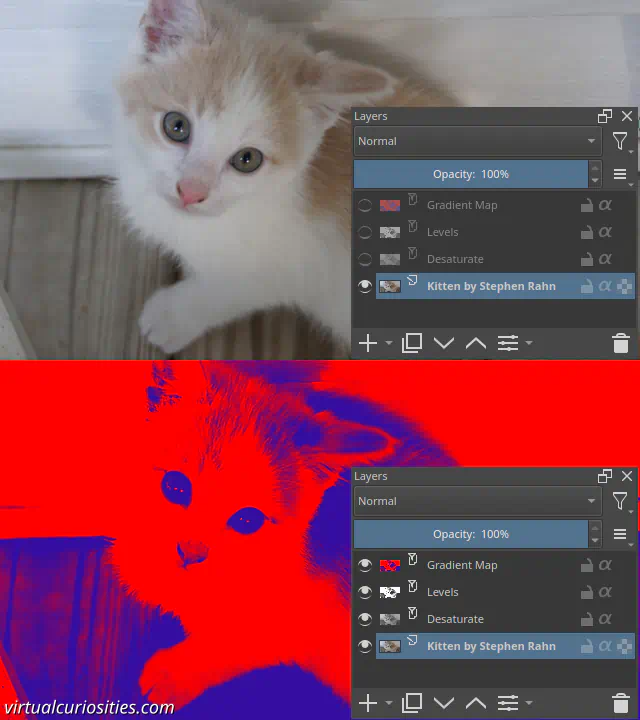
A photo of a kitten, next to it a layer structure in Krita that creates a blue and red duotone effect. The structure includes a gradient map, then a levels filter, then a desaturate filter, and finally the photo of the kitten.
The layer structure of a duotone effect created in Krita. Photo: Stephen Rahn via Flickr.

Video

Project Files

Download Krita project file.

Written by Noel Santos.

About the Author

I'm a self-taught Brazilian programmer graduated in IT from a FATEC. In a world of increasingly complex and essential computers, I decided to use my technical expertise in hardware, desktop applications, and web technologies to create an informative resource to make PC's easier to understand.

View Comments