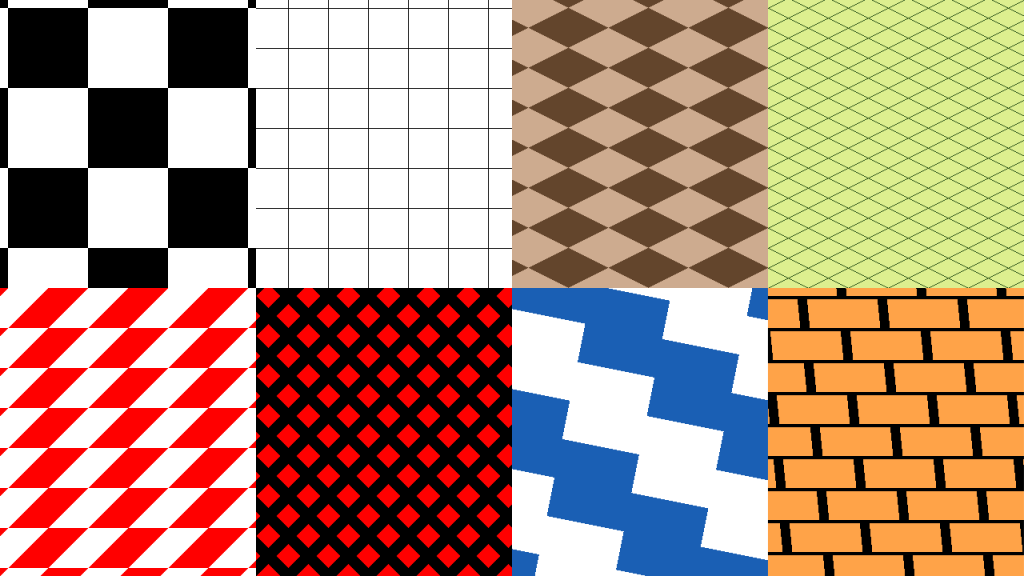
Lately I noticed that Krita doesn't have a native way to create a proper pixel perfect grid or checkerboard pattern, despite having a "multi-grid" function that generates exquisite grids and a screentone feature that can product diagonal checkerboards. It's possible to program this feature yourself using the SeExpr language which Krita supports for fill layers, so I decided to write my own scripts for these.
Download
You can download the scripts bundle here.
Alternatively, you can browse the source code on here: https://github.com/virtualcuriosities/SeExpr-files-for-Krita
Video
Manual
To use these scripts, import the .bundle file in Krita (Settings -> Manage Resources -> Import Resources), add a fill layer, and select SeExpr. You should see the grid scripts' thumbnails in the dialog.
The advanced scripts have a few different settings, that we'll learn about below.
Tip: you can type any number you want next to the slider, including values beyond what the slider allows.
Origin Setting
This moves the grid or checkerboard pattern a certain number of pixels horizontally or vertically. The entire pattern will be shifted without affecting how it looks.
Note: the grid starts at the top-left corner, so origin must be 1, 1 to make the top-left pixel not line-colored.
Width and Height
The size of a single square, including the line size. If width is 16 and the image width is 160, there will always be 10 squares no matter what thickness you choose.
Thickness
The thickness of the lines. Lines are drawn inside the squares, so if the square width is 16 and the thickness is 16, it just makes the entire square line-colored.
Diagonal Rate
This shifts the position of the boundaries as X and Y increase by a given factor for each axis.
When diagonal rate Y is 1, the horizontal line becomes perfectly diagonal: when X is 1, the Y of the line increases by 1, when X is 2, the Y increases by 2, and so on, making it diagonal instead of straight.
How to create a diagonal grid?
To create a diagonal grid, the diagonal rate X must be 1, and diagonal rate Y must be -1, or vice-versa.
If you set both to 1 or -1 it will create diagonal lines to only one direction instead.
Brick
This setting works like diagonal rate but is applied uniformly for each column or row. It can be used to create brick patterns by making alternating rows shift by half of the width of the grid.
For example, if you make a 32x32 grid, and then make the horizontal brick setting 16, then the first row will be unshifted, but the second row will be shifted by 16 pixels, making the left boundary at the center of the square of the first row.
Note: to make a brick pattern you have to set either X or Y of the brick setting, while leaving the other value set to zero. If you set BOTH brick axes to a value greater than zero then it can create some cool patterns, but they won't be very brick-like.
Scale
This setting was added to create isometric grids. It scales the size of the grid by the inverse of this value.
This setting is only useful when you have a diagonal grid, otherwise it doesn't do anything that setting the width and height directly wouldn't have done.
How to create an isometric grid?
Set diagonal rate X to 1, diagonal rate Y to -1—this creates a diagonal grid—then set scale Y to 2, so each "square" is half the normal height.
Gap Fix
This setting tried to fix "gaps" in lines by using some math to make them thicker or thinner according to the scale and diagonal rate.
Background: SeExpr calculates the color of each pixel using a script. This means that these scripts don't "draw lines" or "draw squares." Instead they simply try to figure out whether a given X, Y coordinate is supposed to be one color or the other based on some simple math. Sometimes there is a rounding error that can make a pixel become white when you want it to be black, or vice-versa. I'm not good enough at math to come with a perfect solution for this, so instead I made this setting that you can adjust yourself if there are gaps in the lines that shouldn't be. This is only useful i you are using diagonal lines.
The default values are 1, 1. If you set this to 0, 0, you'll start seeing gaps in diagonal lines when you try to use them.
How do I make a transparent grid?
SeExpr doesn't support transparency by default, but you can achieve any color you want by making a black and white grid and using a filter mask on the filter layer to make it a different color. In this case the filter you'll want is probably gradient map, which lets you select a color and opacity to use instead of black, and another to use instead of white.
Some tutorials to help you: