How to Run an Appimage on Linux Mint

Share
In this tutorial, we'll learn how to run an appimage on Linux Mint. Appimages are commonly used to distribute applications in portable format.

To run an appimage, follow the following steps:

1: acquire an appimage file, e.g. by downloading it from your application's website. It has the .appimage file extension. Keep in mind that you should only download these files from trusted sources (just like .exe files on Windows), as they could contain malware or have been tampered with.
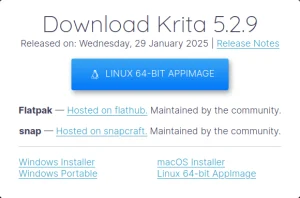
A dialog that says "Download Krita 5.2.9" Release on: Wednesday, 29 January 2025 | Release notes. A large blue button "Linux 64-Bit AppImage." Below: Flatpak - Hosted on flathub. Maintained by the community. snap - hosted on snapcraft. Maintained by the community. At the bottom links to other systems: Windows Installer, Windows Portable, macOS installer, Linux 64-Bit AppImage.
Download format options provided by Krita on its website.

2: make the appimage executable.

3: double click on the appimage to run it.

Note: to place the appimage in your start menu, create a launcher to it on the desktop and you'll be asked whether to put it on the start menu.

Video

Written by Noel Santos.

About the Author

I'm a self-taught Brazilian programmer graduated in IT from a FATEC. In a world of increasingly complex and essential computers, I decided to use my technical expertise in hardware, desktop applications, and web technologies to create an informative resource to make PC's easier to understand.

View Comments