Is Linux Really Free?
Yes. You can download Linux Mint and use it without paying anything, and you'll never be charged for it. However, do note that Linux Mint is supported by donations, so if you like the operating system, send them a few dollars if you can.
Can My Old Computer Run Linux Mint?
If your computer has very little RAM (4 GB or less), you should use Linux Mint Xfce instead of Cinnamon, but it should work and run very well nonetheless. See below for what these terms mean.
Is Linux Easy to Use Like Windows?
You may have heard stories about how Linux is for technical users, programmers, developers, who can use the terminal and know how to code, and you may be wondering if you'll be able to use Linux with the amount of technical skill that you currently possess. The answer is it depends.
Let's say there are three types of people:
- People who mainly use a web browser and barely do anything else on their PCs or laptops, besides maybe listening to music, viewing photos or other images, and watching videos.
- Developers who are uncomfortable with Windows for technical reasons and who can easily figure out how to use a terminal.
- Power users who are either gamers or depend professionally on software, like photo editors, video and music editing and production, etc.
The first type won't have a lot of trouble with Linux. The files and folders are going to work just like Windows. They'll be able to install their favorite web browser. There are image viewers, video players, and audio players on Linux. They may not be able to get their favorite application running, but they may find reasonable alternatives. I won't say it's going to be as good as Windows, but it's going to be alright.
The second type is probably going to be happier on Linux than on Windows.
The third type is going to suffer. And I know you're probably the third type. You're probably a tech enthusiast who wants to try this new "Linux" thing you have heard about. This means that you use a lot of software on Windows, which means there is a very good chance some of it won't work on Linux. Furthermore, some hardware may not work on Linux either.
You will not have trouble with a mouse with 3 buttons on Linux, but if you have unusual hardware that not everyone has, like a drawing tablet, you'll run into trouble. That's because to access a hardware's unique functions you need a unique program, a unique driver, not a generic driver. And the only people who know how to write this driver are the hardware's developer. And they only ever write drivers for Windows because nobody uses Linux.
Similarly, some software, like DaVinci Resolve for video editing, are cross-platform and support Linux, but a large amount of them do not. In fact, I think I've read that the only reason DaVinci works for Linux is that historically Hollywood used Linux machines to do their color grading, and DaVinci was a color grading software at the time. Had it been a consumer-grade software from its creation, it probably wouldn't support Linux today. We got lucky with this one.
If you depend on Windows-only hardware or software in order to work, I don't think it makes sense to switch to Linux.
Do note that you do have the ability to dual boot, installing both Windows and Linux on the same computer, and picking which one to start during boot time. While it's possible to install both systems on a single drive, that often leads to issues, so personally I recommend installing them on separate drives, e.g. Windows on a SSD and Linux on a HDD (or buying a separate SSD for Linux).
Can I Run Windows Programs on Linux?
It's often possible, but sometimes it doesn't work, so it's not something you can rely upon.
When a program is cross-platform, what that means is that all functions of the program that would normally directly talk to the operating system have to go through a middle layer, called an abstraction layer, that has different implementations for each operating system. For example, an application created using Qt talks only to Qt, and then what Qt does specifically depends on the operating system.
If a program only works on one platform, it talks only in that system's language (more technically, that system's API). It's possible to create a program that inserts a layer between that application and the system, so it "translates" what the program wants to tell Windows to its equivalent in Linux.
The name of such program is WINE. WINE implements the Windows' API on Linux so that programs think they're running on Windows when they're actually running on WINE on Linux. There is also WINE for macOS. A related application is called Bottles, which is used to manage multiple WINE configurations, e.g. if you want one Windows XP WINE and one Windows 7 WINE.
With WINE you can run many programs that are Windows-only, and even games that are Windows-only. However, it's not perfect, so if you really NEED a program to work, you can't really depend on WINE, which is why if you need something for work, you shouldn't commit to Linux-only.
Another way of running Windows applications without dual-booting is to install Windows in a virtual machine running inside Linux. This is a bit more complicated than just using Bottles and consumes more resources of the computer, but it can make some Windows programs that wouldn't work on WINE run under Linux.
Can I Run Games on Linux?
It depends on the game.
You can run Steam on Linux, and some games sold on Steam natively support Linux. This includes Counter Strike, for example. Some games I own that support Linux include Hollow Knight and Slay the Spire.
If a game doesn't support Linux, you may be able to run it with WINE or even inside a virtual machine, but things get tricky.
In particular, online games with kernel-level anti-cheat software tend not to support Linux, and if you try to bypass that, naturally your account will get banned for violating their Terms of Service. One interesting case is Rocket League, which dropped Linux support even though players swear that cheating in Rocket League is impossible because you don't shoot things in that game.
What is the Difference Between Linux Mint, Ubuntu, Debian, Pop_OS!, Fedora, Arch Linux, Manjaro, Gentoo, etc.?
Each of these are Linux distributions (also called distros).
On Windows, sometimes the operating system needs to update, which means it must download some data from some server on the Internet, that must be running, which means it consumes electricity. Someone must pay the bill for that electricity. That someone is Microsoft.
On Linux, the same thing happens, and there are several different organizations with their own repositories of software, and minor organizations that depend on the larger ones for the same purpose.
For example, Ubuntu and Fedora, distributed by Canonical and RedHat, respectively, have a business model in which they sell Linux support to companies, and then they use this money to pay for their servers and other operational costs. On the other hand, Linux Mint has no such business model and survives from donations from its users.
Consequently, Linux Mint doesn't have the resources to maintain the whole thing. That's why Mint is based on Ubuntu (at least currently). Mint is mainly Ubuntu, but Ubuntu had some configurations that the Mint team didn't like, such as their snap store, so Mint takes the Ubuntu distribution, removes certain things, changes some configurations, and what they distribute in the end is called Linux Mint.
Ubuntu itself is based on Debian, so some software and configuration is shared between these three distros.
You could change the configurations if you wanted. They serve as starting points, and most people won't change this starting point simply because it's just too complicated. Most of the time, the distro's defaults are good enough and there is no reason to change it.
Distros generally do not matter if you're proficient with Linux, but if you're new, you'll want to pick either Ubuntu or Mint. The distro decides what the installer looks like, for example, and some distros like Debian do not have an installer that just anyone can use.
On top of that, anyone can create distro so long as they can pay the servers for a while, but that doesn't mean the distro is going to last, or be maintained well. Mint and Ubuntu have existed for around 20 years. They aren't going anywhere.
What's the Difference Between Cinnamon, Xfce, MATE, GNOME, and KDE?
These are desktop environments (or DE's). They mainly control how the taskbar, start menu, and windows work on Linux, which would be called the graphical shell on Windows.
Unlike Windows, Linux isn't a graphical operating system. The whole concept of the taskbar, the start menu, and windows exist as a separate software added on top of Linux. I imagine this is the root of many issues related to Linux desktop.
Windows also provides natively a GUI toolkit for applications. These are buttons, text boxes, etc., that applications can use. Linux doesn't have this. Linux is just the kernel of the operating system, and this is the source of huge headaches.
Applications mainly use GTK or Qt as their GUI toolkits, and while both of these are probably going to be installed on every Linux system, there is no guarantee that either of them will be there when the application runs. This is different from how Windows works where it's guaranteed that the system's GUI toolkit will exist on the system. Consequently, to install basically anything on Linux a package manager is necessary to figure out if there is anything the application expects the system to have that is currently missing from the system.
. Distros often offer different "flavors," each with a different DE installed by default. DE's aren't just the taskbar, they also include basic applications such as text editors, file managers, terminal emulators, task managers, system control panels, etc.
For example, on Cinnamon, the file manager is called Nemo. On GNOME, it's Nautilus. On KDE, it's Dolphin.
They're all worse than Windows' File Explorer, naturally, because while Microsoft has to support one single File Explorer, Linux has a dozen different groups of people working separately on a dozen different applications to solve the same problem.
As if that wasn't enough, in some cases a project is a fork of another. For example, MATE is a fork of GNOME, which means the MATE people didn't like the direction the GNOME people were going, and decided to just take their open source code and start a whole new project off it. Every application that was part of GNOME got a new name under MATE, which is just extremely confusing, to be honest.
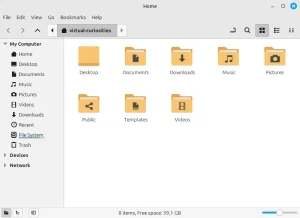
So if your question is which desktop environment is better than Windows, well, they're all worse than Windows. You'll have to give up on that. Cinnamon's Nemo can't even display thumbnails on folders. But that doesn't mean they're all equal.
Personally, I like Xfce, but most people won't like it. Personally, I don't like GNOME, but some people like it. I don't understand such people. Unfortunately, Xfce uses GTK under the hood, unlike KDE, which uses Qt. But KDE isn't as snappy as Xfce, or as Cinnamon, so I think Cinnamon is the best choice for most people.
Why is GTK bad? Well, whenever you try to open or save a file, you'll have to deal with GTK's file dialog, whose GNOME philosophy will make you lose all hope on Linux ever becoming a serious desktop operating system. You can't even rename a file in the file dialog. If you paste a folder's filepath in the filename box and press enter, it leaves the filename empty instead of going back to the original filename. You can't open the file manager from the file dialog. It didn't even let you create a new folder from the file dialog. This isn't hard to program. They just didn't want to add it. It's infuriating. You can't delete files from the file dialog either. The truth is after all the problems with compatibility on Linux, the next problems you're going to have are all about GTK and GNOME. I could write dozens of pages about it, but someone else already did that, so if you want to learn more about it, just read this [https://woltman.com/gnome-bad/] (accessed 2025-02-28). It has some pretty good comparisons of GNOME and KDE.
Additionally, different DE's use different amounts of resources. Naturally, DE's that make heavy use of transparent graphics and animations consume more resources than simpler DE's. In this case, Xfce is one of the lightest DE's you can install. Another alternative is LXDE. It's lighter than Xfce but in my opinion just lacks too many features. The only reason I'd use it is if I need to run some program that I know will consume ALL my memory and I want the DE to consume as little memory possible. In particular, it also consumes less VRAM (video memory, from the GPU), specially compared to Windows.
How Do I Install Linux?
To install Linux Mint, or any other distribution, first you need to go to the distribution's official website where you can find an ISO image of the operating system's installer.
There are various options for downloading this ISO image, including from different "mirrors" and through torrent. You get exact the same file no matter the method. You'll see that the mirrors are often universities around the world.
This ISO image can be burned onto a CD, if you still have one, or in a USB flash drive. For this you may need a special software like Rufus to make sure the drive is bootable (or, I don't know, Nero Burning ROM for CD's?).



After creating the bootable drive, you restart the PC with the drive still plugged, and you should see the installer loading screen. If it doesn't appear, you may need to press some key during the boot to choose which drive to boot.
In some cases the installer is a "live CD" that lets you try the operating system for a while before installing it. This is achieved by "installing" an entire filesystem temporarily in RAM. This is possible nowadays because we have so much RAM. Just keep in mind that because the files aren't actually saved permanently, anything you do in the live CD may disappear after the system is installed.
During the installation, you'll have to partition drives and format the partitions to house a filesystem that Linux supports like ext4 or btrfs. This is VERY DANGEROUS and the main reason why you shouldn't really do this alone if you don't know what you're doing.
Formatting a partition will erase all its data. More specifically, most bits will stay the way they are, but the parts of the partition that tell where a file starts and ends will be modified, so none of the files will be findable any longer. If you accidentally format the partition where you have Windows installed, you lose all your files. And this happens to a lot of people, including people who know how all of this works and then accidentally select the wrong partition to format.
It only takes a few clicks to get through this step, but suppose you have no idea what you're doing. You have only one drive, so if you proceed, all your files are gone. Or you have two drives, so if you proceed, Windows will be gone, or your entire other drive will be gone.
It's possible to repartition an existing partition, changing its size to make space for new partition in the disk. However, this is rather risky, since if something goes wrong, files in that partition will be gone, and if it's critical files of the operating system, Windows won't work anymore.
With this in consideration, the safest choice is to buy a new drive to install the new operating system if you plan to dual-boot, or backup all your files to a secondary drive before formatting it.
The formatting step will show you the size of each physical drive and their existing partitions, so if you have a 500 GB SSD and a 2 TB HDD, for example, it's very easy to tell which one is which just by the displayed capacity. If you can't tell which is which, an alternative is to open your PC's tower and disconnect one drive then try booting in Windows. If Windows boots, the connected drive contains Windows.
Where is the Anti-Virus?
Typically, Linux desktop users do not have an anti-virus. The typical desktop malware developer targets Windows users, while the type Linux malware developer targets servers, not desktop users. Perhaps because there are so few Linux desktop users, and because they are so much more tech savvy than the average Windows user, Linux desktop malware has yet to become an issue in the Linux world.
That doesn't mean Linux is safe from malware. It's just not as easy as giving someone an .exe with an icon of a Windows Media Player and them clicking on it just because Windows doesn't display file extensions by default. If you tried something like this on Linux, it wouldn't even work because for a file to be executed it needs the executable permission which isn't set by default.
What do I do with an Appimage?
An Appimage is an executable file on Linux with an .appimage extension that works kind of like an .exe on Windows. You can execute it, but in order to execute it by double clicking on it in a file manager, you need to change its permissions so it's "executable." To do that, right click on the Appimage, open its file properties, and check some property that says allow it to be executed, or something like that. Then you'll be able to double click on it.
Observation: I'm not sure, but I think Linux Mint's Nemo doesn't tell you that the only reason you can't run an Appimage is because it's not marked as executable.
How do I use a Flatpak?
A Flatpak works like an Appimage, but it's a different type of executable with a .flatpak extension that is sandboxed by default, and nobody tells you this. Flatpaks often have issues opening and saving files because they simply can't access any files by default, and the only files they can access are files that were passed to them by specific means.
For example, if an application contained inside a flatpak lets you open a file, but then it automatically opens other files in the same folder as the file you gave it, it's probably not going to work by default. That's because while choosing the file gives the flatpak permission to open that specific file, it doesn't give permission to touch the other files in the same folder. The flatpak system simply doesn't support the concept of opening sibling files by dragging and dropping only one file..
One case this occurs is with Bottles. If you use the Bottles flatpak to run an .exe, and the .exe needs a .dll or other file in the same folder, the .exe isn't going to work properly and it will probably crash instantly. That's because WINE is successfully running the .exe, but then the .exe can't find the files it requires inside the sandbox, so it crashes.
The solution to these problems is configuration. To configure the flatpaks, you need Flathub, which is a software you install that lets you manage your flatpak's configurations.
You may be wondering why on Earth does the operating system let you just run flatpaks without installing the thing that is required to make them work in the first place. I have no idea. I think Nemo should just come with beginner-friendly warnings for these common Linux issues.
What is Sudo Apt?
apt is Aptitude, Debian's package manager. It's a software that installs packages (other software) on the system. Packages can have "dependencies," which are other packages (other software) that package needs in order to work. The package manager automatically installs everything a package needs in order to work, handling all these dependencies. It also handles updating the packages afterwards. Some distributions have different package managers, e.g. dnf on Fedora.
sudo is a terminal command to execute another command as the root user. In this case, sudo apt executes apt as root.
See [How to Use the Terminal on Linux Mint].

date being executed in the GNOME Terminal on Linux Mint.What is Root / Superuser?
The root user is the administrator user on Linux. The way Linux file permissions work is that every file is owned by one user, and one user can't, view (read), edit (modify), or delete files owned by other users. One exception is the superuser, which has complete control over the system.
When you install Linux, the root user is created automatically, and a separate user is created to be your user. You user has a home folder in /home/<your username>. You can read, edit, and delete anything in this folder. But you can't delete system files, for example, which are owned by root.
When you install software in the system, the software's files won't be placed inside /home/, but inside a system folder, which means the installer must be acting with root privileges, otherwise it can't save those files in there.
That's why you need sudo in order to install things from the terminal, for example. When you use sudo, if your user is a superuser, you'll be asked for your password, and then the system will execute the command as root.
By default, there is only one (human) user on the system, and they're a superuser, i.e. they have the power to issue commands to root, so it's effectively an administrator-level user. If you created a second user account, for a family member, for example, they wouldn't be able to run sudo because they wouldn't be a superuser.
It's technically possible to execute commands as root without sudo by giving root a password and then logging in as root in the terminal. This is generally unnecessary, however. A normal person will only ever use sudo to install packages by name, and won't need it for anything else.
Do You Need Sudo to Install Software?
Not really. If you downloaded an appimage and placed it inside your home folder, you could run it just like if it were installed in the system. There are a few things that wouldn't work, or would be tricky to make work, but it would be almost the same thing.
How do I Install Fonts?
Linux Mint doesn't come with a font manager, so there is no obvious way to install new fonts in the system. You can install them simply by copy pasting them to a hidden folder (~/.local/share/fonts) or by installing a font manager like font-manager.
What is ~?
~ is an alias for your home folder, so ~/Pictures is /home/<your username>/Pictures.
Why Some Files/Folders Start with a Dot?
They're dotfiles. They're normal files that often contain configuration for some program and are treated like hidden files by file managers. For example, .gitignore is used by a program called git.
Where is my D: Drive?
Linux relies a lot on virtual filepaths compared to Windows. When you "mount" a drive, a folder magically appears in /mnt/ or /media/ that represents the root of its filesystem.
For example, let's say I have an SSD where I installed Windows mounted on /mnt/win. Then what would be C:\Windows\System32 is going to be /mnt/win/Windows/System32.
Can I Access My Windows Files from Linux
Yes and no.
Your Windows files will be stored in a filesystem format that Windows supports, like NTFS. Your Linux operating system needs a program that can understand NTFS in order for you to be able to open those files.
When these things happen, the Linux community tries to reverse engineer the software. The reverse engineered Windows API is WINE. The reverse engineered Nvidia drivers are Nouveau. And there is a reverse engineered NTFS handler.
Being reverse engineered means it's not official (as in, not from Microsoft), but an attempt to figure out what was supposed to be the code of the program.
The NTFS implementation on Linux can read files just fine, but when it saves files, sometimes it seems to corrupt sectors in the NTFS filesystem. And then you'll have to run chkdsk on Windows or schedule as disk check by right clicking on the drive and going to its properties on Windows.
I Can't Open My Windows Drive
This can happen when Linux detects some corrupted sectors on the NTFS filesystem. Restart, boot into Windows, and schedule a disk check. Then restart again, boot into Windows, perform the check. And then go back to Linux.
Alternatively, it's possible that this is happening because fast startup is enabled on Windows. When this is enabled, Windows behaves differently when shutting down, leaving its disk in a state that Linux Mint can't open. To fix it, boot into Windows and disable fast startup, then shut down normally, and boot into Linux again.
What is /usr/, /bin/, /etc/?
You really shouldn't need to do anything in system folders. For most things, there is a terminal command that achieves it. If you're reading a tutorial, beware:
To answer your question, /etc/ is where some system configuration files go, /var/ is where some system files go, /bin/ is for binaries (which means programs), and /usr/ I don't really know, but /usr/bin/ is also for binaries. Why is there a /usr/bin/ when /bin/ already exists? It's a mystery.
If you are a developer, you may need to edit some configuration files in /etc/ and view logs stored in /var/ in some cases, but normally there is no reason at all to interact with these, or with anything besides your own home folder.
What is the Difference between Wayland and X11?
X11 is an old way to display things on the screen on Linux that is considered terrible for a number of reasons.
Wayland is its replacement. A new way to display things on the screen that is also considered terrible for a number of reasons.
In particular, some applications that work on X11 may not work on Wayland, and some new versions of software like toolkits may not support X11 anymore.