
liblcms2-2.dll isn't found, preventing Inkscape from starting.Pressing the OK button simply makes the same error message reappear a few times. Inkscape won't start.
Solution
This problem only occurs when you try to upgrade an existing installation of Inkscape using the MSI installer without uninstalling the existing version first. A solution is to uninstall Inkscape first, then reinstall it using the MSI installer.
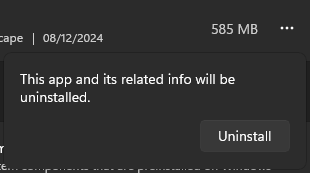
Observation: uninstalling Inkscape doesn't seem to delete your preferences, i.e. if you uninstall it, then install it again, your "recent files" will be there and your workspace will stay just like you left. I haven't checked, but it's likely any keyboard shortcuts you have customized and so on will also persist.
Alternatively, you can try using the .exe installer instead of the .msi installer. To download the .exe installer, visit this URL:
I haven't tested this, since uninstalling Inkscape fixed by issue, but it seems the DLL error only occurs in the MSI installer, so this should also fix the issue.
Observation: although the message on the error message dialog is a very generic one, it's actually accurate: reinstalling the application DID solve the problem. Except that if you tried to "reinstall" by simply "installing" it again, it wouldn't have worked. You need to "reinstall" by uninstalling first, then installing.
Investigation
To fix this, we must make the operating system able to find this liblcms2-2.dll file somehow. Naturally, this SHOULD have been done by the installer, but for some reason it wasn't.
The way DLLs work is that the operating system will search for DLL files in the folder where application is installed (where the .exe file resides). If it can't find it there, it will search in folders configured in the system, such as the PATH environment variable. In some cases, DLLs are installed "globally" to be shared between applications, so they go to a folder in the PATH environment variable. However, in this case it should be inside Inkscape's folder.
In my case, Inkscape is installed at the filepath C:\Program Files\Inkscape\bin. I can see there is no liblcms2-2.dll file in this folder, so I guess it's really missing. There is an open issue at Inkscape's bug tracker about this:
System error liblcms2-2 missing
Again the same problem as in [the issue] 10016, this time liblcms2-2.dll missing
https://gitlab.com/inkscape/inbox/-/issues/11120 (accessed 2024-12-08)
Which was closed as a duplicate of another issue:
Crashes after upgrading MSI installation: libsigc-2.0-0.dll (or other DLLs) missing
When a previous version of Inkscape is already installed, then installing the newest version of Inkscape via Windows .MSI package results in a broken installation.
https://gitlab.com/inkscape/inkscape/-/issues/5126 (accessed 2024-12-08)
A reply to the issue gives us a hint about what we can do.
Can I suggest a mitigation?
Ilario Gelmetti, https://gitlab.com/inkscape/inkscape/-/issues/5126#note_2010847071 (accessed 2024-12-08)
The https://inkscape.org/release/ page could suggest the EXE rather than the MSI installer.
Thanks!!
I searched for the .exe installer on Inkscape's website, and on the download page I noticed it has the following the message:
Please note: Always remove/uninstall the previous version before updating!
https://inkscape.org/release/1.4/windows/64-bit/ (accessed 2024-12-08)
That sounds like the sort of thing that installer SHOULD be able to do by itself instead of relying on the user actually remembering to do it.
This message is missing from the MSI download page, by the way. Not that it would have mattered because I'd probably not have read it even if it were written there.
In fact, it's possible the installer has an option to uninstall the previous version or warns you about it, but I missed it because I don't normally read anything written on any installer, I just click the "Next" button. If you want me to read something important you need to put some flashing lights on it or something. Maybe a GIF.
Uninstall Inkscape and installing it again solved the problem.