Krita is Bad for Long Animation
A digital artist is someone who has both knowledge of the art techniques and of digital technicalities. Many new digital artists wishing to start making animations decide to try Krita because it's free and they heard that it can do animation. They'll probably regret this later.
There are essentially 3 "tiers" of digital animation support across digital art applications:
- Layers as frames. This is what GIMP and FireAlpaca support.
- Timeline. This is what Krita and Clip Studio Paint support.
- Designed for animation. This is the realm of OpenToonz and Tahoma2D.
In the first two tiers, we have an application that is primarily designed for static digital art that figured out an easy way to add "animation" support.
The use of tier-1 is extremely limited. The sort of animation you would want to do in FireAlpaca are transparent stickers, because if you have a background, you'll have to keep copy-pasting it every frame.
The use of tier-2, where Krita stands, is far superior, but it's still very limited. For the record, Krita has poorer support for 2D animation than CSP, e.g. it doesn't actually have the concept of 2D cameras, so panning, zooming, and rotating has to be done with non-destructive transform layers which only go one way and make it hard to edit the animation while the camera is applied. However, EVEN if Krita had the same features as CSP does, it would STILL be poorly suited for animation, at least the sort of animation that new digital artists think of doing.
When people animate in CSP, even in anime studios, what they are doing is animating a short video clip in CSP, and then that clip gets edited in a video editor together with dozens of other clips to create a full episode. This means even a simple 2 minute animation is going to be several CSP files that will be exported from CSP, imported into a video editor, and stitched together in the video editor somehow.
You could use DaVinci Resolve for this, by the way, which is a free video editor.
Krita is not Adobe Flash (RIP in peace). It's not really designed to make long animation with audio and everything you expect from the final product. It does have some very unique features that makes it the best application you can find for creating frame-by-frame animated images, though, but that's not specially suited for digital art, it's just editing animated images frame by frame in general.

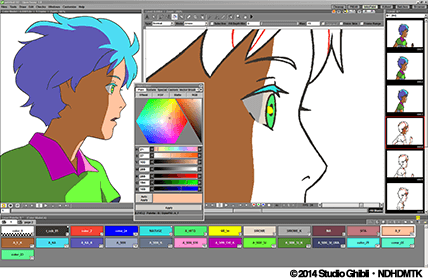
Applications designed for animation work fundamentally different from Krita and its peers. For example, in OpenToonz you can't just paint with any color in any brush. You first create a palette of colors and pick the color to paint with. Later, if you need to change a character's hair for red to blue, for example, you can change the palette color and every frame is updated automatically. This makes the whole process too complicated for just creating a single static image, but it's incredibly useful when you have hundreds and hundreds of frames to animate 2 minutes of a scene.
Krita is Bad at Text
As of version 5.2.6, Krita's text tools are practically unusable in some cases. This isn't an exaggeration. If you try to write black text and you have a dark theme, Krita will show you a dialog box with black text against your dark background and you might not even be able to read what you are writing.
This isn't such a big problem once you give up completely on doing text with Krita, but at first glance you may feel like it's the correct way to do it. It's not. Just use a different software for text instead, like Inkscape, then you can even import the Inkscape text into Krita if you want to use it in Krita somehow, e.g. in masks.
- How to Copy-Paste Text from Inkscape into Krita
- How to Add Text in Krita from Inkscape (PNG File Layer Method)
Krita is Bad at Pixel Art
While Krita does have some pixel art brushes built into it, you really should be using a specialized software with indexed palette support for this. Some free options are GraphicsGale, Libresprite, and mtPaint. Nowadays the definition of pixel art is really vague, so it's only important if you care about doing it the traditional way.

Krita is Bad at Some Image Editing Tasks
Krita is worse than GIMP at some tasks, such as precisely selecting rectangular areas on an image. GIMP also has better support for exporting images, providing more options to customize how images are exported for users that care about such options.

There are also some tasks that are easier to do in Photopea, another free image editor, than to do in GIMP or Krita.
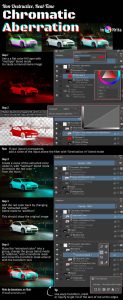
That said, for many image editing tasks, I still believe Krita is better, simply because filter layers, transform layers, and clone layers are extremely useful if you can figure out how to use them. Krita also has a lot more layer blend modes. Combined, these let us do certain things that are simply impossible to do elsewhere.
It's a good idea to learn the strengths and weaknesses of the software you have available in order to know when you're using something that isn't suitable for the task you are trying to do.
For example, while it's possible to create multiple views of the same canvas on Krita, it's not possible to display a grid or guidelines in one view but hide it in another. In GIMP, this is possible.
Krita is Bad at Some Drawing Tasks
Despite being a digital art application, Krita has some pretty egregious issues at fundamental drawing-related tasks that you wouldn't find in similar software.
Brush Management Issues
Creating a new brush in Krita is an incredibly frustrating task. On many other applications, like CSP, FireAlpaca, and Paint Tool SAI, a brush is just a name. On Krita, a brush is a name AND a "thumbnail," just like MyPaint. Which means if you create 5 brushes quickly, you get 5 thumbnails that look identical and you won't be able to tell your brushes apart.

Krita comes with a tool to generate thumbnails, but for some reason I have had every possible issue one can imagine with it. The thumbnail maker images don't load, or it doesn't change the result when you change the settings, or the thumbnail of a brush is reset when you try to save it, etc. If it didn't have these thumbnails it would be far, far simpler to use.
If you do manage to save your new brush, now you have to go search for it in order to tag it. You can't reorder brushes, they're alphabetically sorted. You can't assign custom hotkeys to brushes like you can do SAI, nor can you have hotkeys per group of brushes (e.g. for erasers) like you can have in CSP and FireAlpaca.
There are workarounds for this, like the built-in plugin to set 10 hotkeys for 10 brushes, and using the keyboard shortcut to switch to the previous brush to use the eraser, but it feels like patchwork compared to the workflow that much simpler drawing software can provide by default.
Zoom Issues
Krita has weird zoom levels that will make your drawing look weird when you zoom in. Most software have round zoom levels, like 100%, 150%, 200%, 300%, 400%, and so on. Krita goes 100%, 133.3%, 151.4%, 200%, 266.7%, 400%, etc. This makes everything much blurrier if you zoom in using a hotkey. It's not customizable, by the way.
Cursor to Dab Mapping Issues
If you ever zoom in and try to draw, you'll notice that Krita renders the dabs off-center. You'll see the cursor on one pixel, but Krita will draw to the top-left instead. I'm not aware of any other digital art application that gets this wrong and I'm kind of amazed that it literally shows me the brush outline on one pixel and starts changing the color of a different pixel.
Maybe you think it's a nitpick since it's just some rounding error, but it literally works on every software I've ever tried, except Krita. Even GIMP gets it right. It's just on Krita that they are off-center for some reason.
Not Suited for All Styles
If you draw anime style or something with flat colors and thin lines, you'll probably have a much easier time with FireAlpaca, which is a free application very similar to SAI. It handles rendering brushes different from Krita, so lines look smoother, but it also lacks many of Krita's features, so it might not be a good deal for everyone.

If you rely on brush stabilization, note that every software implements a different stabilization algorithm, so "10 stabilization" means something completely different when you're using Krita, SAI, CSP, or FireAlpaca. It's possible that Krita's stabilization suits you more, but it's also possible that FireAlpaca's is better for you instead.
That said, most people will probably be fine with Krita. It has tons of brushes that FireAlpaca doesn't have, including several brush engines. I hear it's specially good with realistic brushes like watercolors. So instead of being a SAI or CSP alternative, it's closer to a Corel Painter alternative.
Final Considerations
Realistically, you should assume that the issues that Krita does have currently will never get fixed. Krita's development depends on volunteers. If nobody volunteers to fix all these problems, they will simply never get fixed. Someone is probably working on fixing the text tools as we speak, but who knows how many months that is going to take. If they give up, it stays broken.
Even if they do fix it, there is no guarantee it's going to be as good as you wish it were.
Take a look at what Krita can do currently, what people have created with Krita, and decide if it's suitable for you or not. See [Links to Krita Tutorials] for some examples what can be done with Krita.